Shapes Pop-Up Menu
A pop-up menu is available for shapes that lets you export shapes in the .ORSObject file format, execute a macro, create and extract a structured grid, as well as modify a region of interest.
 Items Available for a Single Selection
The following items are available when you select a single shape in the Data Properties and Settings panel.
Align*
Centroid With… Lets you automatically align the centroid of the selected shape with the centroid of another object. Applicable objects include volumetric image data, regions of interest, multi-ROIs, and meshes. These reference objects can be selected in the Choose the Object to Align With dialog.
Export
As ORSObject… Saves the selected shape in the ORS Object file format (*.ORSObject extension). See Exporting Objects.
Extract a One Slice Dataset from Visual Plane***
Extracts a 2D image that corresponds to the oblique or double-oblique angle of a selected visual plane.
Execute Macro
Provides a shortcut for selecting macros that can be executed for the selected shape.
Take Box Shape from Feret Of**
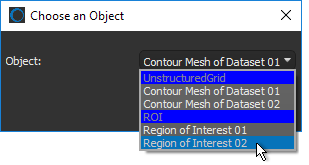
Reduces a box to the smallest encasing rectangle based on the maximum Feret diameter and minimum orthogonal Feret diameter of the labeled voxels of the selected region of interest or unstructured grid, such as a mesh. You can select the required object in the Choose an Object dialog, as shown below.
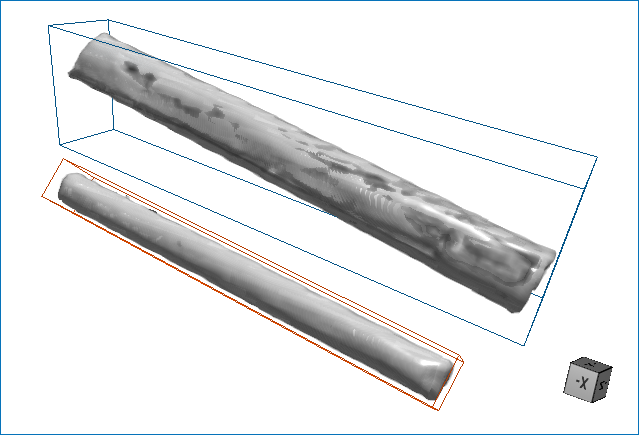
In the illustration below, two box were resized to the Feret and minimal box shapes of selected regions of interest.
Resized boxes
Take Minimal Box Shape Of**
Reduces a box to the minimal encasing rectangle based on the labeled voxels of a selected region of interest or on the bounding box of a mesh.
You can select the required object in the Choose an Object dialog.
Create a Structured Grid**
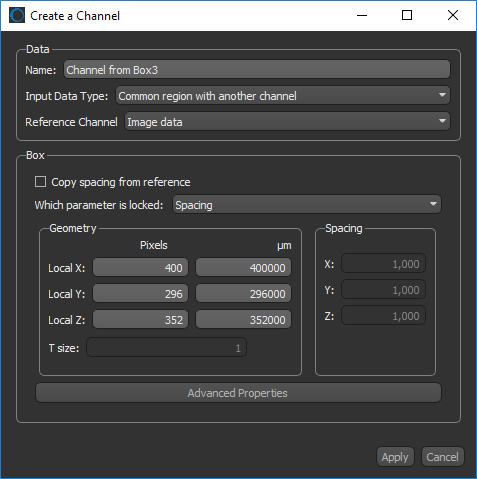
Creates a dataset (structured grid) from the subvolume defined by a box shape. The dataset type created can be a channel, region of interest, or multi-ROI, and the input data and geometry can be selected in the appropriate dialog — Create a Channel, Create an ROI, or Create a Multi-ROI.
Add to ROI*
Adds all voxels contained in the subvolume defined by the current shape to a selected region of interest. You should note that only intersecting voxels will be added to the region of interest.
Extract Structured Grid**
Extracts a dataset (structured grid) from the subvolume defined by the box shape and the intersecting data values of a selected object.
Grow to Contain 3D Object**
Automatically expands a box to fully enclose the bounding box of a selected 3D object.
NOTE You can select the 3D object — such as a mesh, dataset, region of interest, or multi-ROI — that you want to contain or wrap to in the Choose a 3D Object dialog.
Wrap 3D Object**
Automatically resizes and reorients a box to tightly wrap the bounding box of a selected 3D object.
NOTE You can select the 3D object — such as a mesh, dataset, region of interest, or multi-ROI — that you want to contain or wrap to in the Choose a 3D Object dialog.
Mask ROI
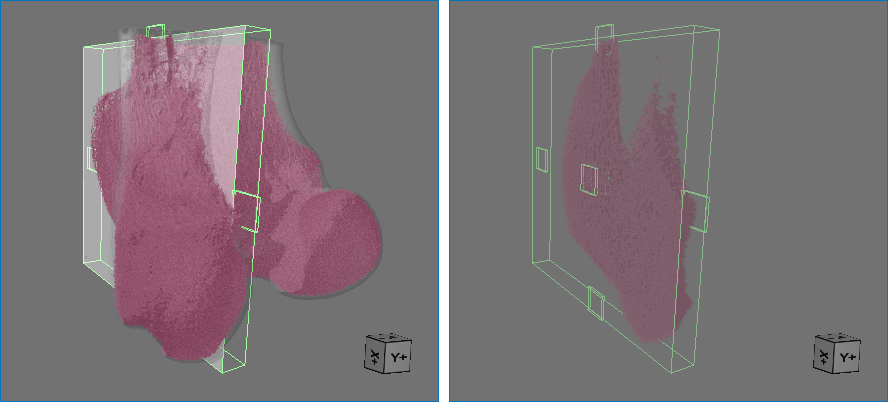
Removes all labeled voxels from the selected region of interest that are outside of the shape. For example, when you need to limit computations to a subset of the data.
Before masking (on left) and after masking (on right)
How to Mask an ROI
- Create and resize a 3D shape, such as a box, cylinder, or sphere.
- Right-click the shape and then choose Mask ROI in the pop-up menu.
- Choose the region of interest that you want to mask in the Choose an ROI dialog.

- Click OK.
All labeled voxels that are outside of the shape are removed from the selected ROI.
- Save the changes you made to the ROI, if required (see Exporting Objects).
Remove from ROI*
Removes all intersecting voxels of the subvolume defined by the shape from the selected region of interest.
Edit Visual Box**
Lets you modify the spacing of a Box shape or to create a box with a specific granularity. For example, when choosing a box for computing vector fields describing anisotropy for a bone analysis.
NOTE You can also edit the advanced properties of a box, such as its position in space or orientation (see Dataset Properties).
* Available for all shapes, except for planes.
** Available for boxes only.
*** Available for planes only.
Items Available for Multiple Selections
The following items are available whenever you select two or more shapes in the Data Properties and Settings panel.
Export
As Multiple ORSObject… Exports the selected items in the ORS Object file format (*.ORSObject extension) to a selected folder as multiple files (see Exporting Objects). If the selected items share the same name, their file names will be appended with a sequential number.
As ORSObject… Exports the selected items as an ORS Object file (*.ORSObject extension) to a selected folder (see Exporting Objects).
Execute Macro
Provides a shortcut for selecting macros that can be executed for the number of items selected.
Add to ROI*
Adds all voxels contained in the subvolumes defined by the current shapes to a selected region of interest. You should note that only intersecting voxels will be labeled and added to the region of interest.
Extract Structured Grid**
Extracts a dataset (structured grid) from the subvolumes defined by the box shapes and the intersecting data values of a selected object.
Remove from ROI*
Removes all intersecting voxels of the subvolumes defined by the shapes from the selected region of interest.
* Not available if any of the selections are planes.
** Available for boxes only.